
E-books can be found in three main formats: EPUB, PDF and MOBI. These formats are not supported by all devices, such as certain MOBI formats for Kindle or EPUB for smartphones and eReaders. Generally, most books are available in EPUB, although Windows 10 does not support it directly, so we need a reader of this format to enhance the reading experience. Let’s see the best ones, from best to worst.
1. Epubor Reader: the best ePub Reader
Epubor Reader is the best designed epub reader for Windows. It supports almost all formats other than epub format.
It is highly customizable so that your reading experience is not disturbed. In customization, you can change the font size, color and background colors. In addition, you can highlight, make notes and bookmark the page.
In Epubor Reader, you can also change your reading mode from horizontal to vertical reading.


Epubor Reader’s user interface is very intuitive, with no clutter, so you can fully immerse yourself in reading.
This epub reader remembers most things when you left the screen, such as what page you are reading and what your reading position is.
To jump directly to a particular page, you can take the help of the table of contents features.
Other unique features include automatic switching from single to double page, which depends on screen size and reading position.
Chances are you would like to manage all your eBooks from one place; here, Epubor has you covered.
With Epubor Reader, you can easily import any eBook into your library. In addition, from the book list, you can search for your eBook with any keyword such as title or text you remember.
To organize your eBooks in a library, you can sort them by author, publisher, language or ISBN.
In addition, with the extended version, you can easily access eBooks from multiple devices and it is also equipped with the best eBook converter. You can even remove the DRM function of eBooks for better control of eBooks.
You can download a copy of Epubor here.
Neat Reader
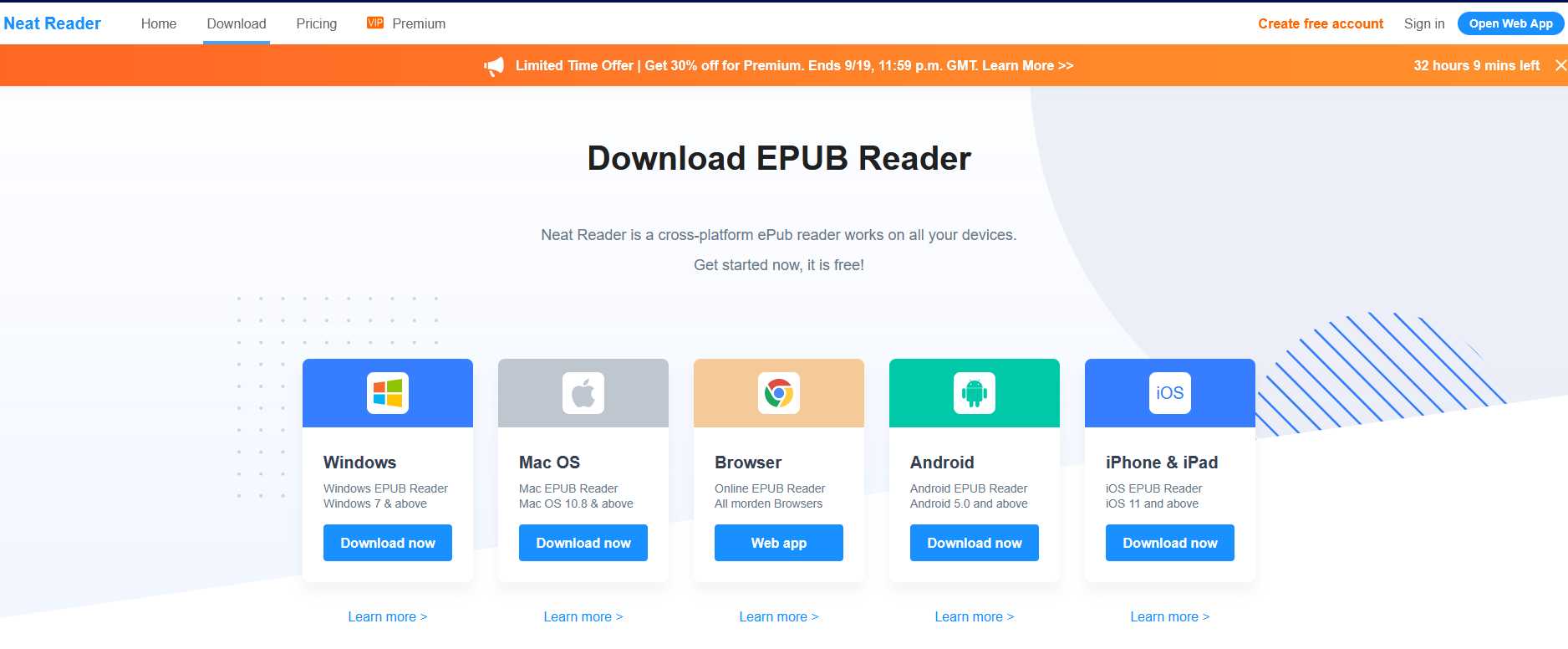
Neat Reader is one of the most beloved and robust epub readers for Windows.
The application looks beautiful and impressive, and the developer has taken care of every little detail.
It renders your eBooks very fast and smoothly, thanks to a robust parsing engine. In addition, it supports ePub 2 and ePub 3 standards.
To improve reading efficiency, you can add annotations and notes. In addition, you can also export the notes, if necessary, so that you can refer to them on the fly.
Neat Reader’s most powerful feature is secure cloud storage. In the cloud storage, it stores your eBooks, notes, reading progress and more, so you can retrieve them anytime, anywhere, without data loss.
To upgrade the experience and functionality, you can even upgrade to the premium version of Neat Reader.
The premium version of Neat Reader supports a massive collection of eBooks along with free 10 GB cloud storage and synchronization between devices.
You can also use the premium version of Neat Reader on unlimited devices. That’s a big benefit at a small price.
The disadvantage is that it only supports EPUB format and also does not support DRM-protected e-books.
It is currently compatible with Windows 7, Windows 8 and Windows 10/11 versions. In addition, it is compatible with all modern browsers as add-ons.
You can download Neat Reader for free here.
Thorium Reader
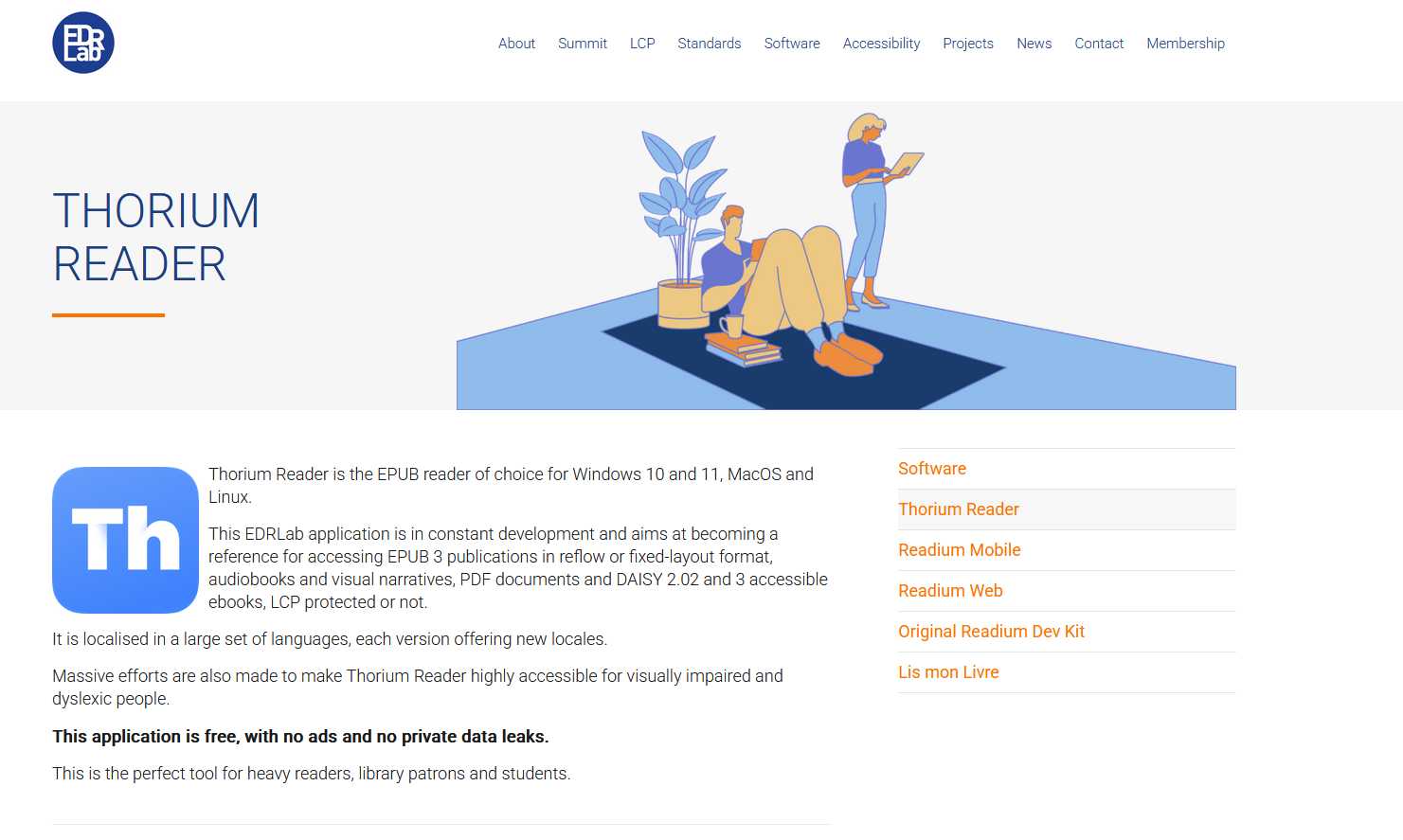
Thorium Reader is a free and open source EPUB reader developed by EDRLab, specifically designed to offer a modern and accessible reading experience. It supports EPUB 2 and EPUB 3 formats, including DRM protected eBooks (LCP).
Main characteristics:
- Modern and clean interface: Offers an intuitive and customizable user experience, with options to adjust fonts, sizes, themes (day, night, sepia) and margins.
- DRM support: Compatible with LCP-protected books, making it ideal for digital libraries using this system.
- Synchronization and storage: Allows you to import books from local storage or cloud services and synchronize reading progress between devices.
- Accessibility features: Includes text-to-speech support, screen reader compatibility and options for visually impaired users.
- Multi-platform support: Available for Windows 10/11, macOS and Linux.
- Annotation functions: Allows highlighting, adding notes and bookmarks.
Advantages:
- Free and without ads.
- Supports a wide range of eBook formats, including EPUB and audiobooks.
- Focused on user privacy, as it does not collect personal data.
- Ideal for users looking for a lightweight, high-performance reader.
Disadvantages:
- It does not have an integrated book store, so it relies on external sources to download books.
- Customization may be less advanced compared to options such as Epubor Reader.
Download:
You can download Thorium Reader for free from its official site: https://www.edrlab.org/software/thorium-reader/.
4. Calibre – Free ePub Reader
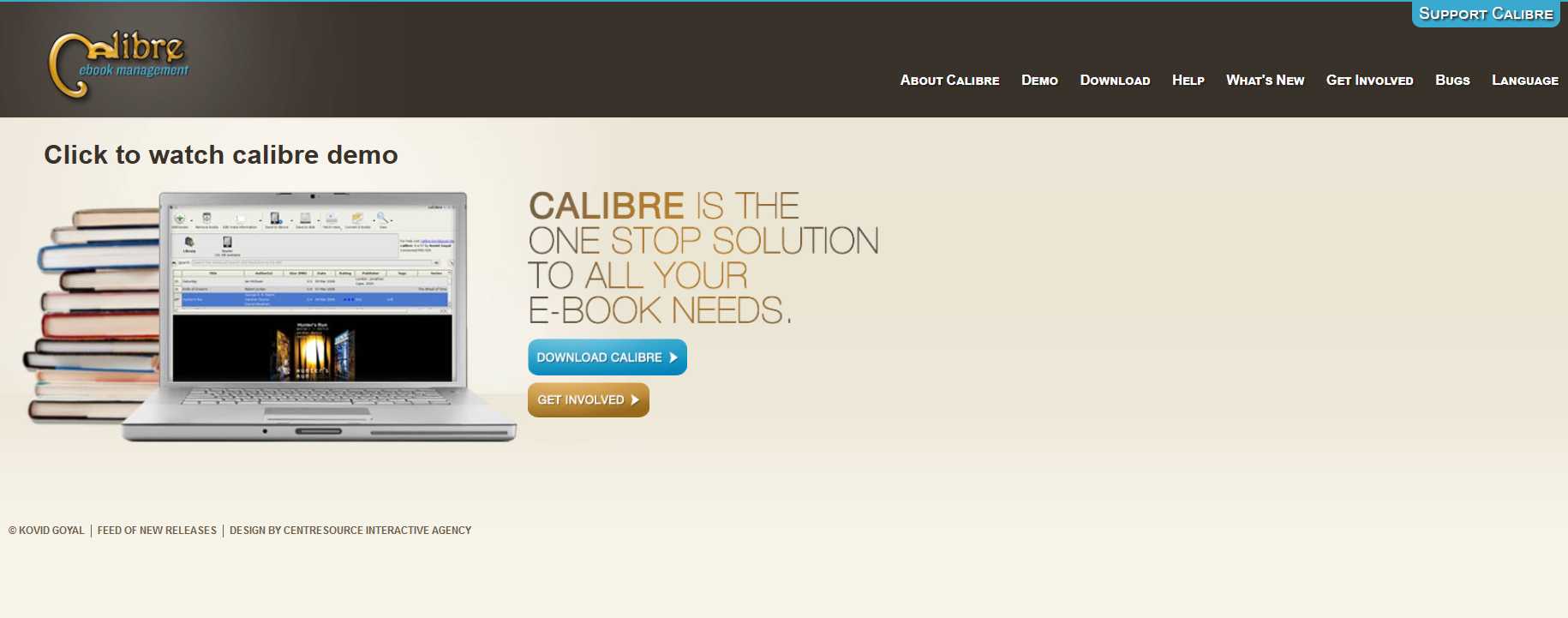
Calibre is a powerful and free ePub reader for Windows PCs.
It has a function that manages your eBook collection and helps you change the appearance of the application.
In addition, if necessary, you can browse your eBook collection using author and publisher names, tags and book titles. You can even take advantage of the search and sort function.
It fetches news and magazines from the most popular websites automatically and sends them to your device.
It has a function that converts any eBook from one format to another. In addition, it can also be useful for transferring e-books from one device to another.
Calibre has some backup functionality that will ensure the safety of your eBooks.
The disadvantage of using Calibre is that it has no support for DRM-protected epub eBooks. Also, Calibre’s cluttered interface makes things cumbersome.
In addition, Calibre does not have a highlighting and annotation feature required by most readers.
It is currently compatible with Windows 8 and 10/11, both 32-bit and 64-bit.
You can download a free version of Calibre here.
5. Adobe Digital Editions: compatible with the EPUB 3 standard.

Adobe Digital Editions is another free epub reader for Windows. This application is useful for publishers who like to review their ebooks.
It is ranked among the best EPUB3 readers, as it supports the EPUB 3 standard. In Adobe Digital Editions, you can easily organize your eBook collection and sort them by title, author and publisher.
E-book search is another feature that allows you to search using keywords.
It syncs easily between devices, so any eBook downloaded or purchased on one device will quickly appear on another device.
To enhance the experience, they include bookmarking, highlighting and notes features in the current edition.
The most important feature of ADE is that it supports DRM-protected EPUB and PDF eBooks.
The other outstanding features include that you can easily access eBooks in multiple languages, multiple file formats and you can even print your eBooks.
The disadvantage of Adobe Digital Editions is that it freezes and crashes very frequently. You may also experience very slow and choppy page scrolling.
You can download a free version of Adobe Digital Editions here.
6. Icecream EPUB Reader

An Icecream eBook reader is the best epub reader for Windows that is easy to use.
Efficiently manage your digital eBook library and track reading progress, add notes, translate text, bookmark function and more.
You can search for any eBook in the library using the title, and you can even search for any text in the eBooks.
For a better experience, they have included the navigation scroll bar to navigate through pages faster and resume reading from where you left off.
The unique feature of the Icecream eBook reader is the full screen mode and night mode that allows you to read in low light or no light.
You can even organize your eBook library by grouping eBooks together.
Supports Windows 11, 10, 8.1, 8, 7.
You can download the Icecream eBook reader for free.
7. Freda

Freda is another of the most widely used free epub readers for Windows 10/8.
It has a minimalist design that supports highlighting and bookmarking features. What sets Freda apart from other epub readers are features such as Text-to-speech, auto scrolling and fast reading.
You can even import eBooks from an online catalog such as Smashwords, The Gutenberg Project and Feedbooks. In addition, downloading is supported from any website and email attachment.
If you already stored your existing book collection in a cloud storage such as Dropbox, One Drive, Calibre, you can easily import it into Freda.
Along with the EPUB format, other formats such as MOBI, FB2, HTML and TXT are also supported.
You can keep your favorite e-book pin to the top of the page and you can even download e-books to your device to read in case of loss of network connectivity.
The disadvantage of Freda is that it contains ads and also does not support DRM-protected e-books.
It currently supports Windows 8, Windows 10 and 11, Windows Mobile and Xbox One.
You can download Fred for free here.
Kobo

Kobo is another epub reader for Windows that supports an integrated eBook store.
The integrated eBook store is a unique feature that allows you to download your favorite eBook from a different store.
They have a collection of over 5 million eBooks, comics and children’s eBooks, which you can buy and save to your book collection.
You can manage your eBook collection as much as you want and easily sync with different devices. Kebo keeps your activity saved so you can start where you left off.
You can enhance your reading experience by changing the font style, font size, preferred alignment, margins and line spacing.
They have also included three themes such as Day, Night and Sepia, which will change the appearance of the page.
They support almost all devices, including Windows 10/11, 8.1, 8 and web application.
You can download Kobo for free here.
9. BookViser
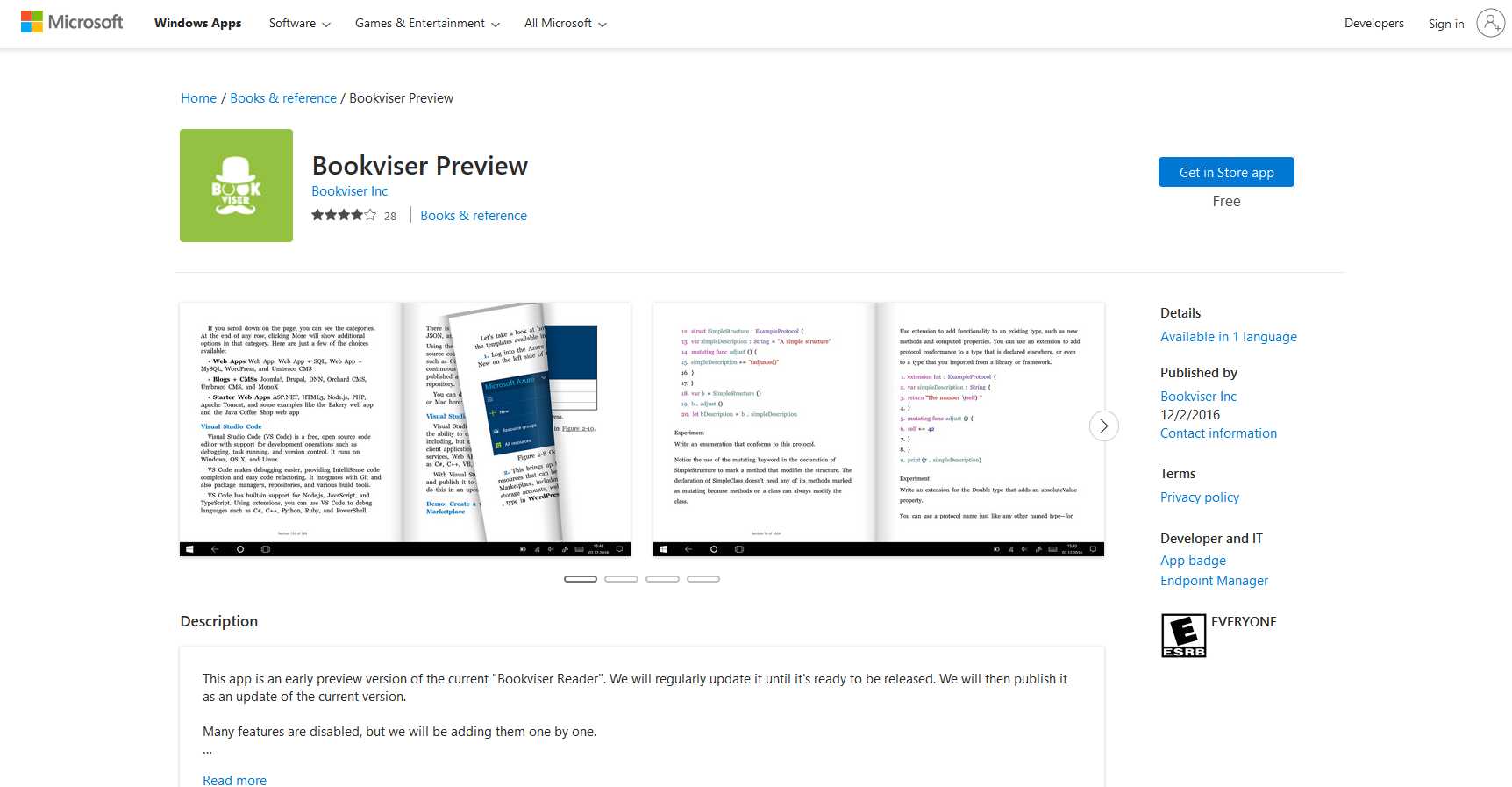
BookViser is a highly customizable ePub reader for Windows PC with a clear and simple user interface.
The most attractive feature of BookViser is the realistic page-turning animation, which makes you feel like you are reading a physical book.
In the preferences, you can change the font, change the background and you can change the page turning animation effect.
In addition, you can download various eBooks from different sources, such as Project Gutenberg and Smashword, which are well integrated with BookViser.
In addition, importing from local storage devices and cloud storage such as Dropbox, OneDrive, Google Drive made it easy.
BookViser also facilitates library management where you can organize your eBooks as you wish.
The downside of BookViser is that it only supports Windows 8, 10 and Windows phones. It was also noted that it was too slow with your device and can sometimes crash.
In addition, Bookviser does not support DRM-protected eBooks.
You can download Bookviser for free here.
10. Nook

Nook is an epub reading application for Windows that is part of Barnes and Noble, one of the world’s largest offline bookstores.
With the success of Amazon Kindle, Barnes and Noble launched its app and online service known as Nook.
The Nook app has access to millions of e-books and magazines, which you can purchase, or you can take a free 14-day trial of their service.
They have good customizable options, which include adding notes, highlighting words, changing font size, line spacing and you can choose your themes.
You can easily access your activity where you left off from different devices.
You can download the Nook application for free from here.
11. FBReader

FBReader is another most popular epub reader for Windows machines that has over 20 million installations.
In addition to epub format, it supports almost all formats such as fb2, Mobi, RTF, HTML, plain text and more.
It is highly customizable to enhance your reading experience or to make reading more convenient. You can customize color, fonts, page turning animations, and custom bookmarks and dictionaries.
Provides access to an extensive network of e-book libraries so you can build your free e-book catalog.
You can organize your eBook collection by authors, publishers and series. In addition, you can synchronize your eBook collection, bookmarks and reading positions across multiple devices.
It is compatible with platforms such as Windows 11/10/8/7/Vista/XP, Windows phone and can be accessed from web browsers.
You can download the Windows version of FBReader from here.
12. Sumatra PDF
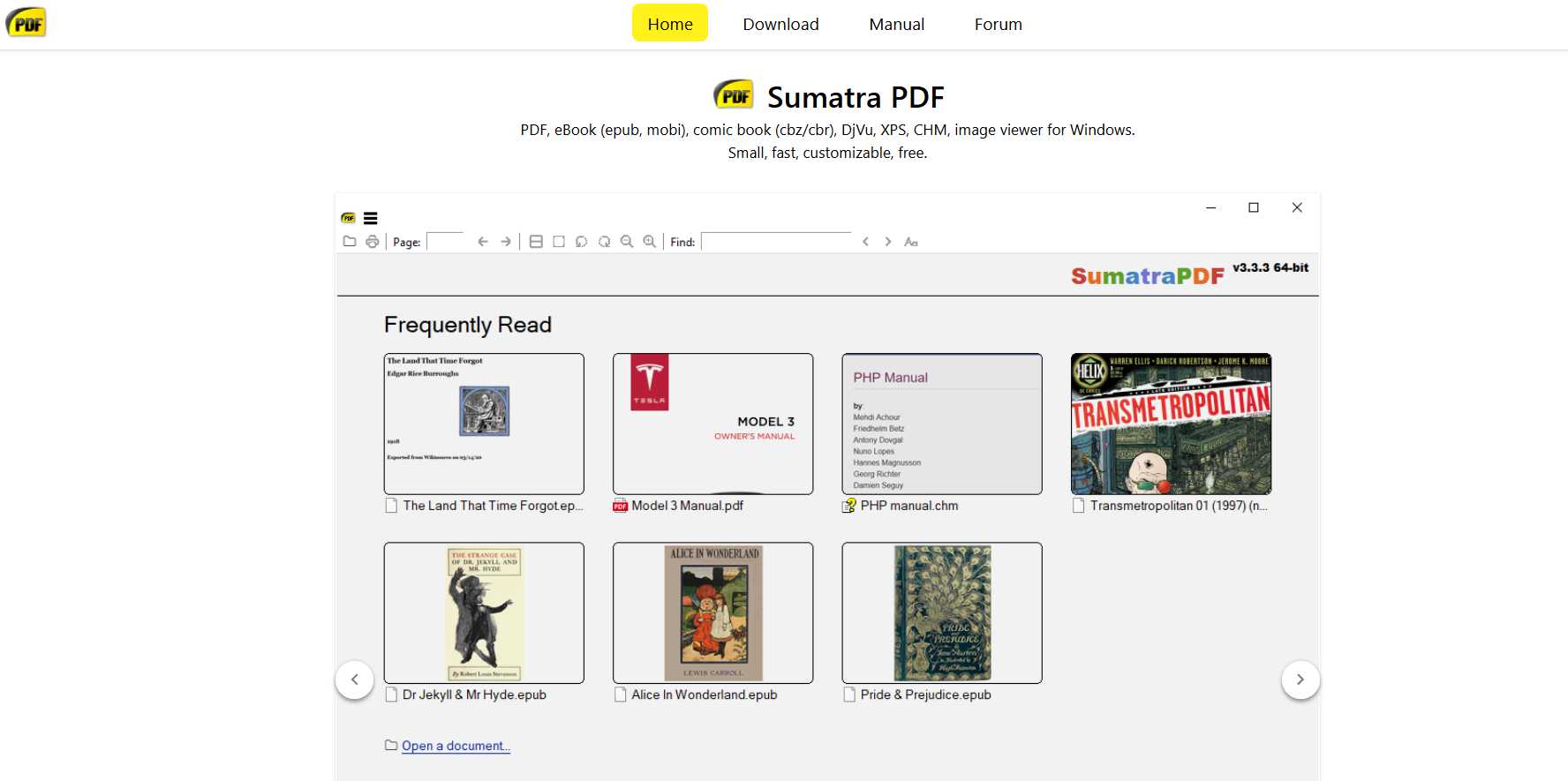
Sumatra PDF is an easy-to-use epub reader for Windows. It is a small, portable but powerful and fast epub reader.
High priority has been given to the simplicity of the user interface.
They have very few bugs, and if you encounter any problems with the application, you can ask questions directly or give feedback on their forum.
You can even translate the Sumatra application into different languages.
If you like cleaner, faster and less buggy application, Sumatra PDF is for you.
It is supported by Windows 11, 10, 8, 7, Vista, XP.
You can download Sumatra PDF from here.
13. Bibliovore

Bibliovore is another free epub reader for Windows dedicated to the epub format.
The Bibliovore application is easily accessible from the Windows Store and is free to download.
The most attractive feature of Bibliovore is that it is suitable for easily managing large libraries of e-books.
You can even sync your eBooks across multiple devices and easily access them from online storage such as OneDrive.
In customization, you can easily adjust the font size, color and background. In addition, you can change the theme and reading mode, day or night.
You can import your favorite e-books in epub format, or you can download them from free e-book stores such as Project Gutenberg and Ebooks Gratuits.
It is currently compatible with Windows 11, 10, 8.1 with 64-bit and 32-bit operating systems.
You can download Bibliovore for free from here.
14. The Cover

The Cover is primarily an application like Kobo, which supports the epub format and can be easily accessed from the Windows Store.
The advantage of using The Cover is that it supports heavy graphics without any problems. Therefore, if you have an e-book that contains a large amount of graphics, pictures and images, then The Cover is for you.
It is famous for those who like to read comics and manga.
The free version of The Cover has minimal features, such as it can have a total collection of 25 eBooks only, and it cannot sync with multiple devices.
It has a beautiful and easy-to-use user interface that provides a seamless reading experience. In addition, it supports online storage for Dropbox and OneDrive.
Like others, you can make some necessary customizations, such as font size and style, background color and page dimensions.
It is currently compatible with Windows 11, 10, 8.1 and Windows cell phones.
You can download The Cover for free here
Frequently Asked Questions
What is the ePub file?
EPUB is an open eBook file format in which the content of the file is a combination of HTML, CSS and XML to provide a complete aesthetic document.
The layout of the EPUB file is considered agnostic, meaning that its format does not affect screen size.
The meaning of ePub is electronic publication.
EPUB is the recommended file format for most devices, applications and e-readers. Both iOS and Android operating systems support it.
How to open ePub files in Windows 10/11?
The EPUB file has a file extension of “.ePub“.
To open ePub files on Windows 10/11, you need an ePub reader which you can download from the list below or from the Microsoft Store.
Once you have the software installed, you need to right click on the ePub file and open it with your preferred ePub reader. An ePub application will first read the eBook format and then open it accordingly.
What do I do if a reader such as Icecream or BookViser does not recognize EPUB files downloaded from online libraries with custom metadata?
If Icecream or BookViser do not recognize EPUB with custom metadata, verify the integrity of the file with Calibre (using “Verify EPUB”). Correct corrupted metadata in Calibre (“Edit metadata”). Alternatively, convert the EPUB to another format and return to EPUB with Calibre. If the problem persists, use Neat Reader or Thorium Reader, which have better support for non-standard metadata.
How do I activate or enhance the dark mode in readers like Sumatra PDF or FBReader if it is not displayed by default in Windows 11?
Sumatra PDF does not have native dark mode; use the Windows 11 theme (Settings > Personalization > Colors > Dark Mode) to force compatibility. In FBReader, enable dark mode in “Settings > Appearance > Night Theme”. If it is not available, update FBReader to the latest version from fbreader.org. For a better experience, try Neat Reader, which has a robust dark mode.
Why are some readers like The Cover or Bibliovore slow with EPUBs that include a lot of graphics or comics, and are there faster alternatives for that?
The Cover and Bibliovore are slow with heavy graphics due to unoptimized rendering engines. The Cover is designed for comics, but its free version limits performance. Use Thorium Reader or ComicRack (not listed) for better graphics performance. Make sure you have enough RAM (8 GB minimum) and consider reducing the resolution of the file in Calibre before opening it.
Can advanced text-to-speech (TTS) be integrated into readers like Freda or Kobo with Windows 11 custom voices, and how to set it up?
Freda supports TTS, but to use custom Windows 11 voices, go to Windows Settings > Accessibility > Narrator and select an installed voice. In Freda, enable TTS under “Options > Read Aloud” and select the system voice. Kobo does not support advanced TTS; use Freda or Thorium Reader for better integration with custom voices.
How do I remove DRM from EPUB books in readers like Epubor or Adobe Digital Editions without violating terms of service, and is it legal in 2025?
Removing DRM is legal for personal use only in some countries, but violates the terms of service of most platforms. Use Epubor Ultimate (paid version) to remove DRM, following their guidelines at epubor.com. Check local 2025 laws, as they vary (e.g., it is more flexible in the EU for personal copies). Adobe Digital Editions does not remove DRM, it only supports it. Proceed with caution to avoid account lockouts.
How secure are these readers in terms of privacy, such as if Neat Reader or Calibre collect data from my books in the cloud?
Calibre does not collect data in the cloud, as it works locally, but does not have native encryption for libraries. Neat Reader uses cloud storage with AES-256 encryption, but check their privacy policy at neat-reader.com for details on data sharing. Thorium Reader (not listed) is open source and prioritizes privacy, with no data collection. Use offline software such as Sumatra PDF for maximum privacy.
How do I handle malware-infected EPUB files when importing them into readers like BookViser or Freda from emails?
Scan EPUB files with an antivirus such as Windows Defender before opening them. Avoid downloading from untrusted emails. In BookViser or Freda, import only from verified sources (such as Project Gutenberg). If you suspect malware, open the file in Calibre first to verify its integrity. Use sandboxing in Windows 11 (Settings > Security > Windows Sandbox) to open questionable files.
Is it possible to sync reading progress between these readers (e.g. from Calibre to Nook) and Android/iOS devices using services like Google Drive in 2025?
Calibre does not sync directly with Nook, but you can use Google Drive manually to transfer EPUB and bookmarks. Neat Reader and Kobo offer native sync between Windows and Android/iOS via their servers. For Calibre, use plugins like “Reading List” to export progress to Google Drive. Thorium Reader supports synchronization with cloud services, but requires manual configuration.
How do I configure readers like Sumatra PDF or Thorium Reader (not mentioned in the article) to synchronize with libraries like OverDrive or Libby in Windows 11?
Sumatra PDF does not support OverDrive or Libby directly; use Adobe Digital Editions for DRM books from these libraries. Thorium Reader supports OverDrive/Libby via LCP DRM integration: download the EPUB from the Libby app, import it into Thorium and authenticate with your library account. Configure in Thorium: “Library > Add source > OverDrive”.
Are there customizable keyboard shortcuts or extensions for readers like Icecream or FBReader that are not mentioned in the basic documentation?
Icecream EPUB Reader allows basic shortcuts (such as Ctrl+F for searching), but no advanced customization; check their forum at icecreamapps.com for user scripts. FBReader supports customizable shortcuts in “Settings > Keys” (e.g. assign Ctrl+N for notes). Search extensions on fbreader.org or GitHub forums for unofficial plugins that enhance functionality.
What is the best EPUB reader for Windows 11 that looks like the macOS Books app, with modern UI and support for synced notes?
Thorium Reader is the closest thing to the macOS Books app, with a modern UI, support for synced notes (via cloud) and EPUB 3 compatibility. Of those listed, Neat Reader has a similar interface and robust syncing, but Thorium offers better accessibility. Set up notes in Thorium from “Annotations > Sync”.
Why Microsoft Edge no longer supports EPUB in 2025, and how to migrate my Edge library to one of these readers like Calibre?
Microsoft Edge removed EPUB support in 2020 because of the switch to Chromium, and in 2025 there are no plans to resume it. To migrate your Edge library, export EPUBs from the Edge downloads folder (or OneDrive, if you synced) and import them into Calibre with “Add books”. Use Calibre to organize and convert if necessary.
Are there any free EPUB readers with built-in AI (such as automatic summaries) that are not listed, compatible with Windows 10/11?
No free reader in 2025 offers advanced AI such as automatic summaries natively. Thorium Reader and Calibre do not have AI, but you can use Calibre plugins (such as “Summary Plugin” on GitHub) for basic summaries. Experimental alternatives like AIReader (in beta) are emerging, but are not stable. Search x.ai/api for custom AI solutions.
How do I fix compatibility issues with Windows 11 if a reader such as Calibre or Sumatra PDF freezes when opening large EPUB files?
To fix freezes in Calibre or Sumatra PDF with large EPUB files on Windows 11, make sure the reader is updated to the latest version from their official sites (calibre-ebook.com or sumatrapdfreader.org). Verify that your system meets the minimum requirements (RAM and CPU). In Calibre, reduce the load by disabling unnecessary plugins in “Preferences > Plugins”. For Sumatra PDF, try opening the file in portable mode or with hardware acceleration disabled (set in Advanced Options). If it persists, use an alternative viewer such as Thorium Reader, which handles large files better.
Do these readers still work on newer Windows 11 updates (such as 24H2 from 2025), or are there patches needed for EPUB 3.3?
Most of the readers mentioned (Calibre, Sumatra PDF, FBReader, etc.) are compatible with Windows 11 24H2, but some require specific updates to support EPUB 3.3. For example, Calibre 7.x and Thorium Reader (not listed) are optimized for EPUB 3.3. Check the release notes on the official sites and apply patches if mentioned. Adobe Digital Editions may need to be reinstalled to avoid bugs in 24H2.
These best EPUB readers for Windows 10 and 11 offer various features to satisfy readers. These applications make it easy to read eBooks and allow you to create catalogs of free books from various sources.
The most prominent EPUB reader for Windows is Epubor Reader, thanks to its intuitive design and advanced customization. Neat Reader and Thorium Reader are also excellent choices for their performance and synchronization. Calibre remains popular for its versatility. If you have tried any of them, please share your experience!
Conoce mas sobre todas aplicaciones para conseguir casas para limpiar por tu cuenta lee nuestra guía al respecto.
